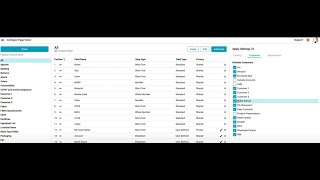
How to setup a Surefront Account from a Customer Invite
13 Feb 2025 · 1 min

1:10
Walk through setting up a SureFront account from a customer invite. Click Connect in the email, choose Team Plan, enter company details, apply a promotion code to drop your bill from $125 to $0, add a credit card, and sign up. Then navigate to CRM to view your programs, quotes, and orders.
Chapters
More from Luke








youtube.com
THE COMPLETE GUIDE TO PLM IMPLEMENTATION I PART 1: SHOULD YOU INVEST IN PLM SOFTWARE? (4K UHD)
2y ago

youtube.com
THE COMPLETE GUIDE TO IMPLEMENTATION I PART 2: HOW TO PURCHASE THE BEST PLM SOFTWARE (4K UHD)
2y ago

youtube.com
THE COMPLETE GUIDE TO PLM IMPLEMENTATION I PART 3: HOW TO IMPLEMENT PLM SOFTWARE (4K UHD)
2y ago
See all content