This content was created by Luke Wang. This content was uploaded by Luke Wang. This is a YouTube tutorial titled "How to Add a New User on Surefront" (created 2023-11-17). The excerpt is an instructional walkthrough by two speakers (labeled SPEAKER A and SPEAKER B) demonstrating step-by-step how to add and manage users in SureFront: creating a new user, entering name/email, assigning admin and catalog roles (full/limited and subcategory selection), book upload and bulk upload permissions, searching and maintaining users, deactivating/reactivating accounts, and the confirmation email process. It concludes with a prompt to contact customer success for questions.
Chapters
In today's tutorial, we'll be reviewing how to add a user to your account. Click on the three lines. Select User Accounts.
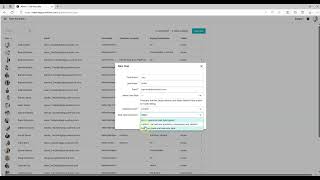
To add a new user, select New User. You may enter their first name.
Their email address. You may choose administration roles or leave blank. Please note a company admin will have access to everything. Select their catalog access. Full means they will have access to all items within the categories and catalog. Limited means you can select which categories and subcategories they have access to.
Book upload access, you can choose none, unlimited, or full. Click create.
You may use the search button to search for a user. Click on the user. You may maintain that user on the right-hand side. For the catalog, you can select all or you can select individual subcategories. You can select individual categories. For customers, you can choose which customers you would like them to have access to. You can choose as many as you like. For buying, for product development, you can choose all or you can choose different areas of product development you'd like them to access. On bulk upload, you can choose full, none, and limited as well. Please note that items are saved as you go through them. If you need to deactivate an employee, you can click the deactivate account. You'll get a pop-up asking you to confirm deactivation. The account is deactivated. If you want to reactivate the employee, you can activate account and the employee is again reactivated. You can click on their information to again access all of their related information and choose how you want their access. Please note that once you set up a new user, they will receive an email from SureFront to confirm their email address and password. Thank you for joining us today. Please contact customer success if you have any questions.










