How to Create a Showcase for Customers from the Catalog on Surefront
19 Dec 2023 · 1 min
1:10
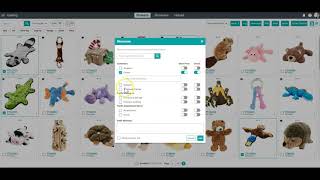
Learn how to create a Surefront Showcase by selecting items from your catalog, choosing a customer and category, and optionally adding prices and email notifications. The Showcase tab tracks all your sent showcases organized by customer.
Chapters
More from Luke









youtube.com
THE COMPLETE GUIDE TO PLM IMPLEMENTATION I PART 1: SHOULD YOU INVEST IN PLM SOFTWARE? (4K UHD)
2y ago

youtube.com
THE COMPLETE GUIDE TO IMPLEMENTATION I PART 2: HOW TO PURCHASE THE BEST PLM SOFTWARE (4K UHD)
2y ago

youtube.com
THE COMPLETE GUIDE TO PLM IMPLEMENTATION I PART 3: HOW TO IMPLEMENT PLM SOFTWARE (4K UHD)
2y ago