Walk through creating a purchase order from a quote in Surefront. A buyer requests pricing from a supplier, who enters unit and cost prices. The buyer then selects items, adjusts quantities and dates, and sends the order for the supplier to confirm.
Chapters
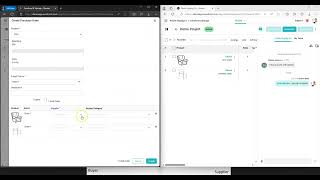
Today we're going to talk about placing an order from the quote received from your supplier. You created a project within Sharefront, you sent the project to your supplier and asked them to quote it. The supplier will receive an email that looks like this. They can click on the View Request in order to view your request. From a supplier side, on the screen on the right, you can see that The supplier sees the items that you have requested. They can click on the three dots and edit the data so that they can fill in pricing and other items. They would fill in unit price, and that would be your cost. Unit cost would be their internal pricing that you would never see. Once they enter the pricing They can save their data that they have. They can also then go into the chat function to let you know that pricing has been completed. They can use the function to tag a team member. Notice this is under the Pacific Buying Company, which means they have shared with you. If it was strictly under the supplier's own team, they would click on my team. We're going to click Send, and you'll notice on the left-hand side, on the buyer side, it'll say that there is a message from your supplier saying that pricing is complete. Once your pricing is complete, you may go in and you can view— and close your chat— you may view the different items and they can see the requested cost. If you are like the requested cost that they gave you, you can select your items that you wish to create a purchase order on. Click your items, create purchase order. We can move to that purchase order. You can click the Edit Data button and you can adjust your quantities. You can save your data. You can also click the three dots to click Edit, and this will edit your header level. You include an FOB point. You include the PO date as required. You can include a ship date of when you want the item to ship. If you want cancel date or receipt date or any other item, and you can also include a PO number. You can save that information. Once your items ready and your quantities are filled in, you can send that information over to your supplier by clicking the Send button. You can choose who you would like the items to go to. You can even create a message and you can click Send. They will receive the order on their side. You can notice the red highlighted dot. SF173 is available on your right-hand side under the supplier. If they like what they see and they say there's 50 of each, 25, and they can see your messages in the chat function, if they're content, they can click confirm. This will confirm your order on your side and theirs. You can tell that both orders are confirmed by the seller and by the buyer at the top of each screen, whether it's on the buyer side or on the supplier side. By the way, the supplier side will see their orders within Customer Relationship Management because you are their customer. Your orders will be within the Product Lifecycle Management section. Under your category. Please let us know if you have any questions by contacting support@surefront.com or clicking on the chat function in support. Thank you.