Luke Wang shows how to generate a custom Tech Pack PDF in Surefront's PLM or PIM sections. You can configure page orientation, toggle component visibility, add sticky notes and images, select data fields, and save your settings as a reusable template before downloading.
Chapters
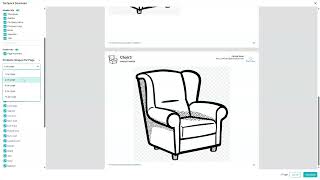
Today we're going to be talking about Tech Packs. Tech Packs are PDF downloads that allow you to view data for a single item in a PDF file with a few clicks. The PDFs include images and other product information. The export can be downloaded from the product's detail page found in the Product Information Management section of the Catalog. The Customer Relationship Management area, or the Product Lifecycle Management area, which is where we are now. Within any of the product details page, you can select your item and then click Download. At the left, you can see that there are page settings for your tech pack download. You can choose your orientation. You can see whether you wish to display components or not. If we scroll down to the bottom, we can see that components have been displayed by clicking that button. You can choose to display private fields. You can choose to display sticky notes, which are the comments between you and your supplier. Notice the comment under material. You can choose to add a cover page. Just drag and drop an image, and you can add a description if you like. You can add footer information including page numbers. Then you can also choose how many products images per page. If we scroll down and go to product images, we can see if it's 2 per page, 1 per page, or even 16 per page. Then we can select our fields. Please note that all fields are selected and we can unselect them as we need. Notice the description is checked on the left. For remove it, it unchecks on the right. Anything within purple is a private field. Please note you can use private fields with these downloads. If you would like to keep this template for future use, you can change the name of your template from default to whatever name you like. Click Save and the template will be available for use for next time. You may click Download when you are finished and your download will start automatically.