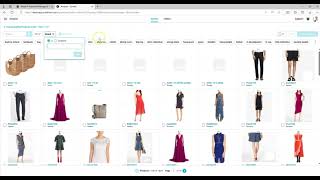
Walk through creating a customer quote in Surefront CRM, from selecting a customer and adding catalog items with filters to editing product details like quantity and price. Send the quote via email for unlinked customers or use internal messaging to collaborate with your team on linked ones.
Chapters
Today I will be demonstrating how to create customer quotes. Select the three dots on the left-hand side. Customer Relationship Management. Any linked customer will have a triangle next to their name. Any unlinked customer will just have their name listed. Select a customer. Select Create Quote. Enter a quote title.
You may enter freight terms or leave blank. Create Quote.
We can start adding items from the catalog to the quote. You can use the search filter to type in any information. You can use categories and subcategories to narrow it down. You can select Add Filter to search by user-defined fields. Select a user-defined field, enter your information is or contains information, click Add, and your information will be filtered. You can also use any of the custom tags And you can use these in combination with each other as well.
Once your items are selected, click the checkbox next to the item number. Click Add Products. You may edit the data by clicking the Edit Data button.
This can change your quantities. You can also change your unit price, your landed cost, your ratios.
Click Save when you're finished.
You may click on the three dots next to any of the item numbers to edit the product. Please note that any changes made in here will have no effect on other items in your catalog. They are completely and separate. Click Save when you're finished. When you're finished making your changes, click Send. Any unlinked customer, you may enter their email address. You can send an email message and you can send a copy to yourself and you can click send. Once you do that, all changes that you want to make may be done in here and any communication can be done on the tab at the top. This is your original message to your customer. The Mike Team are internal messages you can talk to, to your team about. If you have a linked customer, you may click on the item and you can click on any field and you can use sticky notes to leave messages as well. You can also use @messages for your team. Thank you for joining us. If you have any questions, please contact customer support in the Help Center or chat with us.