Luke Wang shows how to create and send sales orders from your SureFront catalog to customers, whether they're on the platform or not. Select items, fill in customer details and freight terms, edit line-item quantities and prices, then email the order directly to the recipient with a custom message.
Chapters
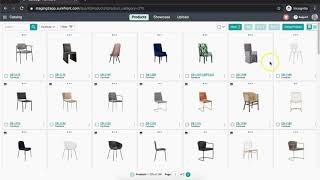
In today's video, we will be reviewing Seller Generated PO. As a seller, not all of your customers will be on SureFront, but you will still have the capability to send out an order for their review. Today, I will be showing you how easy it is to send directly from your catalog and into their inbox. So let's get started by heading to our main catalog page. Select a few items you would like to send an order for. At the top, select the Sell button, and on your dropdown menu, you have the option for Sales Order. You are required to fill out Customer, Freight Terms, and Copies. For Customer, select your designated customer for who you would like to send the order to. If you have not set up your customer just yet, select Default, as this is a default folder where all your orders will be placed into. For freight terms, select Domestic Collect, Domestic Prepaid, or Import. Write the destination for this order and decide how many copies of this order you would like to create. Once complete, select Create at the bottom, and a green notification will appear that confirms you have successfully created this order. Click on the link and you will be redirected to the Orders page. Fill out any necessary information on the main page, like quantity, cost, or price. At the top, select "Edit" and fill out all that will apply to your order. You can even add special instructions if needed. Click "Save" once you are done. At the top of the page, you are then able to click "Send" and a pop-up window will appear with options for you to send it to. For customers that are set up with your account, their email will appear for you to select it. If you have selected the default folder, you will have to type out the email address of who you are sending it to. You will also have the ability to add a team member on the notification as a reference. Write a quick email message at the bottom, and once you are complete, select Send. Another green notification will appear. That you have successfully sent out that order. And there you have it! You have just sent out your first sales order to your customer. Continue to send multiple orders and increase business with SureFront's all-new Seller Generated PO. For any questions, please feel free to reach out to support, which is located at the top of your page.