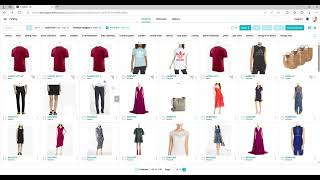
Luke Wang shows how to find products in Surefront's catalog using search, category filters, material filters, and numeric ranges like lead time. You can filter out items without images, use tags to narrow results, and remove filters one at a time or all at once.
Chapters
Today we're going to be looking at filtering within the catalog. Select your catalog. You can use the search button to search items within the catalog. You can also use the category button to narrow it down as well. And if you wanted to do a particular field, call it material, We can do a filter by material. So we can do an add filter. We can type in material or we can scroll to the material. We can say is leather or contains leather. Click add and we can see our information filters down. You can remove the category red. You can even say you want everything —now you have all items made of leather in all categories without color. You can also use the Add Filter to search by images. Which of my items does not have an image? At the bottom you can see here the 6 items that do not have images. Any field within your product catalog you're able to search for. If your item has a number field, you can use a range. We can say between 60 and 180 days for lead time. And here are the items. And if we look at the item, lead time is between 60 to 180. Lead time is exactly 60 days. This is a way to easily filter down your items As you search and you filter, your items move to the top. You can easily remove a filter by clicking on the X, or we can add more items, or we can also clear all to get back to original. If you have tags within your catalog as well, you can also click within the tag to further search down and filter as well.