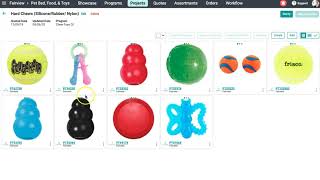
Learn how to save items from Projects, Quotes, or Orders back into your Surefront catalog. Select an item, click Save to Catalog, change the item number to create a new entry, add tags, and confirm. The same process works across all three sections.
Chapters
In today's video, I will be demonstrating how to save your items back to your catalog. You can access this feature in any project, quote, or order you are working on in your account. Let's start by heading to a project. I will also show you how easy it is to save back to your catalog in quotes and orders. Click your left menu panel and select any department or category. Once your page gets redirected, select Projects at the top. Select a project you are working on. Click into an item you would like to save to your catalog. Once you're in the page, select Save to Catalog. The Save to Catalog page will appear, and if you are overwriting your item, then it will display what the previous values were. If you would like to save this as a new item, change the item number on the top right-hand side. And a message will appear showing you that you are saving this as a new product. Once complete, select Next. A set of tags will appear if you would like to place a tag on this new item. You can also create a brand new tag if the one you are seeking is not listed. Click Save once you are done. You will get a green notification stating you have successfully saved this item. You can easily repeat this process in Quotes and Orders. Continue to save as many items as needed in your catalog through SureFront. And for additional questions, please feel free to contact support at the top.