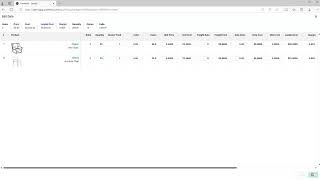
Open your supplier's quote email in SureFront to view items in grid or list view. Click Edit Data to fill in required fields and adjust Unit Price versus Unit Cost. Use the chat icon to message your supplier directly, and they'll receive it by email.
Chapters
You have received a quote from your supplier and you are wondering what are the next steps in SureFront. Here we will get you started and walk you through the steps of receiving a quote from your supplier. Start by clicking into the email you received. You do not have to have an account to access the quote that was sent. Your quote will appear in grid view which shows a thumbnail image for the item number that were sent. Click the lined icon view to see pricing and quantities. To adjust any data in this view, click the Edit Data button. If any other information applies, fill in the blanks so your buyer can review it. Click Save when finished. Please note, Unit Price is internal information for you to determine the margin. Unit Cost is how much you're buying from the supplier. Once complete, click the chat icon You can place an symbol and let your supplier know. Click on your supplier. Send your message. Your supplier will receive the notification in their email inbox and you can continue to communicate through the quote. So eventually lead into an order. For any help on this topic, click Support and either Help Center or Chat with Us. Thank you for watching.