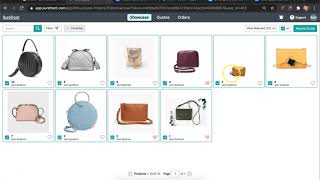
Walk through requesting a quote from a supplier's showcase on Surefront without an account. Select products, fill in freight terms, send the quote, then add target costing and minimum order quantities. Use the chat tab to message the supplier with extra details.
Chapters
You have received a showcase from your supplier and you are wondering what are the next steps with SureFront. Here we will get you started and walk you through the steps in requesting a quote from that showcase. Simply head to your email inbox and select the showcase that has been sent to you. You will be redirected to view the showcase and you do not need an account with SureFront to view the information. On your screen you will notice multiple products that you are able to preview and heart your favorite items. Select the items you would like to proceed with, and in the top corner, select "Request Quote." Proceed to fill out the quote name and freight terms, and once completed, select "Send" at the bottom. A green notification will appear, and you are able to click here to be redirected to the quote itself. You are then able to add any additional information like target costing or designated MOQs you are looking to purchase. On the chat tab at the top of your quote, you can write a message to your supplier in lifetime directing them to the additional information you have included. And it's just that simple. You have sent out your first quote from Showcase. Continue to respond to more showcases that your supplier will send and move your business forward with SureFront. For additional questions, feel free to click the support at the top of your page.