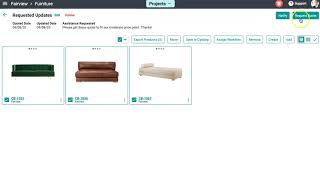
Luke Wang shows how to send an internal Surefront project to suppliers. Select items, use Quote Center to pick suppliers, send the request, then use Update Sales to forward the chosen quote back to your teammate. Status banners track whether quotes were accepted, rejected, or sent back.
Chapters
Your requested updates folder will be located in the Departments and Categories section of your account. If you have another team member on your account and they send you an internal project to work on, then it will appear in your requested updates folder. Let's head to that folder by selecting the left menu panel and scrolling down to the Departments and Categories section. Click into a category of your choosing and head to the Projects tab, which will be listed at the top of your page. On the left-hand side, you will see a Requested Updates folder. If your team member has sent you a project to work on, it will be located in this file. From here, you can click into any requested update and select all the items you would like to request a quote for. In the pop-up window, you will see all the suppliers you can request further information from. Write a quick email message and at the bottom, press Send. A green notification will appear that this has now been transferred over to your Quote Center to view for individual suppliers. Once you receive pricing from your suppliers, you can send it back to your team members by heading into its product details page. Under Quotes, you will have a couple prices to select from. Our systems will notify you if you've already submitted it to sales. Simply click the ellipse icon and select Update Sales. Once the pop-up window appears, select who you are sending it back to and write a quick message, and then select the Update button. When you head back to the requested update, a yellow banner will appear over that item showing that it has been sent back, and if your sales team has accepted it, the banner will change to green. If they rejected it, the banner will change to red. Continue to work with your team in the requested updates folder and select support at the top for any additional questions.