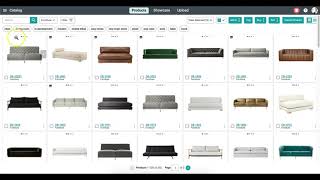
In this instructional video, Luke Wang walks viewers through the tags feature in Surefront’s product catalog. Starting from the main catalog page, he shows how to select multiple items, open the Tag pop‑up, search for or create new tags, assign multiple tags to each item, and save the changes. He then demonstrates how to filter the catalog by a tag, view the tagged items, and locate the tag list on the product details page. The tutorial emphasizes that using tags streamlines team workflows by making it faster to locate and manage groups of products, and it explains how tags can be added or removed at any time.
Chapters
Here we will be demonstrating how to use our tags function to help you organize the products in your catalog. Make it 10 times easier for you and your teammates to locate items with a simple tag. You will start on your main catalog page and select a few items you would like to collectively label under one tag. At the top of your page, you will notice a few buttons that have been highlighted after selecting some items. Click on the Tag button for a pop-up window to appear with further instruction. You can either search for an existing tag or create a new one for these set of items. You can select multiple tags to be associated with a single item. Once complete, click Save and the tags will be linked with those set of items. To see the changes you have made, select the tag at the top. You can then select an item once it is filtered, and once you are redirected to its product details page, you will find on the right-hand side a section where any tags that have been applied will be listed there. Refer back to these items at any time to add or delete as many tags as needed. No longer will you need to browse through countless pages to locate a group of items that your team is working on. Tags simplifies your work to speed up your daily processes.










