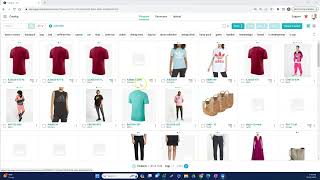
Learn how to manage product variants in SureFront by duplicating items for different sizes or colors and linking them to a parent product. The tutorial shows two workflows: duplicating a burgundy shirt into small, medium, and large versions, or creating a new parent product like an Adidas T-shirt and linking existing color variants to it through the Components section.
Chapters
Here's how to handle sets of items or variations of the same item in SureFront. Let's take this burgundy shirt for example. By selecting the item, I'm in the item details page where I can duplicate the item in my catalog as many times as I want. If I go back to the catalog, you'll see I've already gone ahead and renamed each copy of the product to small, medium, and large. This symbol right here indicates the item is linked to another item in my catalog. If I go back into the parent item, you'll notice each item that I've linked is listed here under components. If I click into one of the variants, I can find the parent item associated to it that it's linked to here. The other way to go about it is to create a new parent item from scratch in your catalog. Here you can select Create Product, add the item number, the category you want it to belong to. In this case, I went ahead and created a new parent item called Adidas T-shirt that I wanted to add these two color variants to. So if I go into my new product, I can click on Link under Components And then in my catalog, I can link the color variants that exist in my catalog that I want associated to my new parent product.










