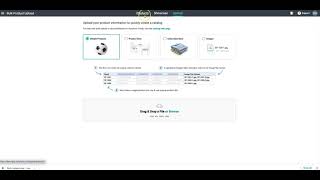
Learn how to bulk import thousands of products and images into Shorefront using CSV or Excel files. Drag and drop your data, map columns to Shorefront fields, and the system remembers your mapping for next time. Images auto-match to products by item number or file name, then you get a report showing what succeeded and what failed.
Chapters
Welcome. Today we're going to show you how to import products into your catalog and then export those products into customizable formats to fit your customer needs. First thing to do is to come over to the upload tab. From there, we can drag and drop any Excel or CSV in any different type of format into the upload. So here you can see our CSV. We're going to download that and then drag and drop it into the file upload. Once that file uploads, we're going to get a preview of the file. Here, the system will recognize some of these headers, but it will also show us what that data is so that we can come in and map the data that we had in our file into any field that we want in Shorefront. After we do this one time, Shorefront will remember our column headers so the next time we drag and drop a file with the same column names, it will automatically map those values into Shorefront's system. As we go through here, we might see some fields that are out-of-the-box standard in Shorefront, and of course, we may also see some fields that are unique to our business. This case, Item Class. Maybe we don't have anything that fits right away. We can take that field, create a user-defined one very easily, select whether we want that to be private or shared, and then save mapping. As we go through this file mapper, we can map all of the data for thousands of different products and hundreds of different attributes very quickly to bulk import those products into our Shorefront catalog. This allows us to use one single file to import all of the products into Shorefront, which will then allow us to export those products into other customer formats or share them with our customers using Shorefront sales tools. Here we can see us completing the process. This will give us a report: 200 new items created. Now if we come back to our product catalog, we're going to see all 200 of those new items and the data that we've imported for them. Now that we have all of our item data, we might want to add images. We can add images one by one at the product page here, or we can go back to the bulk upload Select Bulk Import of Images, and then drag and drop all of our image files directly into Shorefront. Shorefront will take all of the products that exist in our catalog and find the files that are their match based off of data that we provided it or based off of the item number and file name. Here you can see we're dragging and dropping about 700 images in here, and Shorefront's gonna do all of this work for us. As that item upload, as those image uploads continue, it will give us a report on how many were successful and how many didn't find any matches. Now when we come back into our product catalog, we're going to see beautiful product images, maybe even multiple images per product, all quickly uploaded into the system just with a quick drag and drop.