This is a transcript of a YouTube tutorial (Part 1) by Paul Bohlen explaining the first steps to build a private Family Financing GPS request form (spreadsheet). The speaker describes triggering a GPS from a client-provided debt & expense sheet; locating client policy records in Infusionsoft (search both spouses); extracting policy metadata (issue date, owner/insured, policy number, company); obtaining current cash values, loan available and the latest in-force illustrations from various insurers (AUL, Security Mutual, MassMutual, Ohio National, Penn, Emeritus) via company portals or by contacting the carrier; and then populating the GPS template (date/month tab, policy values tab) so the left-hand policy-value section and first green column compute total cash values for subsequent banking calculations. The clip ends after completing the left-hand side checks.
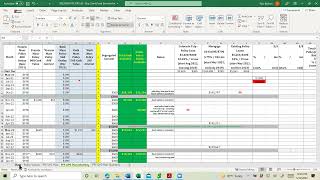
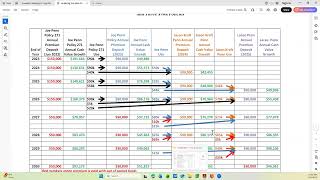
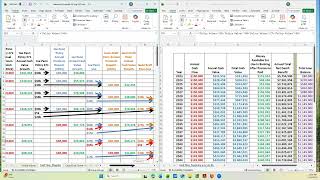
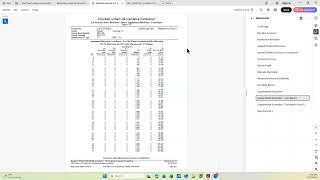
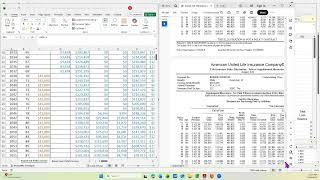
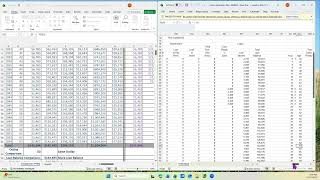
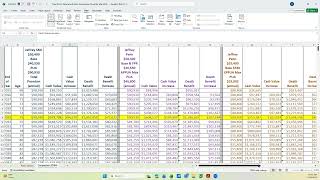
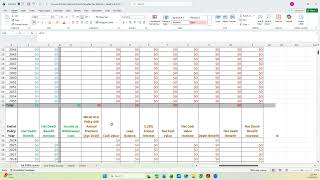
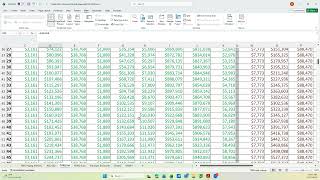
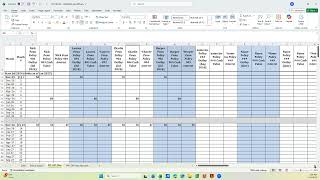
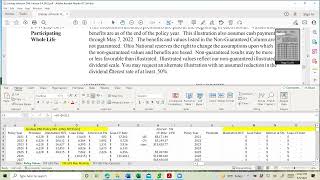
Okay, this is going to be part one of building the gps. So I go over how it gets started, and then I'll do other parts for different parts of the spreadsheet. So what triggers a GPS normally is the receipt of a debt and expense sheet from a client. And when they do that, then the we've got to figure out, okay, what policies does this client have? Because we put all the policies on the same gps. So the way we do it is we go to infusionsoft, we search for that client, and then once we find that client, we go to the page where their policies are, get to where I can use this as a, as a. Not a cursor, that's a. There we go. So once I go there, I went to this particular client and then I go to the policy info tab and I look at the policies that this client has and there's four up here. Some look like they're not enforced yet. But infusionsoft may not be exactly accurate. Sometimes husband and wife policies are not under both of them. So you may have to search both the husband and the wife, but this is where we get the policy number, the date and who the policy is on and what the company is. So sometimes we need to do a little more research than just just going to infusionsoft. Once we have that, then we take that information and start building the PFF request form. So here's the four policies that this particular client has, and we put the issue date, the owner and insured, the policy number, the cash value and the loan available that we have to get from the company. And we also have to get from the company the latest in force illustration. And I'll go by each company in just a second to tell you how we do this. And we put the premium on either mat monthly or annual or semiannual or quarterly. So all that information is on this form that we'll then use to build the GPS policy tab for the various companies. For aul, we can go online directly with AUL and get the current loan and cash values. We also can download the OASIS file for the past in force illustrations or the newer product we just do directly online. For Security Mutual, we can go online to get these values, but we need to contact them directly to get an in force illustration. For MassMutual, we can go online and get the information and we can get the in force illustration if it's a year old or the original if it's less than a year old. For Ohio national, it depends on whether we're still an agent for that policy. It's either going to be under Nate's login or my login. And if that client is, then we can get the current values and we also can run an in force illustration. If they're not under either of our logins, then we got to go through Prevail to get the information. Emeritus. We have to do that all directly with the company. For all the policy values and the illustrations for Penn, we're able to log in under, you know, normally my, my login and you can get all the policy values and you also can get the Inforce if it's a year or more old or the original if it's not over a year old. And I think that covers all of the, the various companies. So you have this, you get the Inforce illustration and then you go to the GPS template and start building it. I start with the month tab or the date tab because that allows me to decide where is this thing going to begin. And I'm going to pretend that it's not at the right month. And I'm going to put in that it's gonna be May 21st. And if I want it to be May 21st, I want all these others to be in sequence. So I just copy them down. Just take that copy down. And now I know that the dates are all gonna be plugged in to this particular form automatically. So the first thing to do is decide the date. Well, how do I pick what number, what month to start with? I go to this request form and I look at the issue dates. I want to start a month at one of these issue dates and I want it as close to where we are right now in time. So I don't want to go back to June of 21. I'm going to go to December 21st and that will get me the starting point for this gps. So I go back to the, to the document, go to the policy or the date tab and I'm going to change that to be 12 and I want it to be 21 because we're now May of 21. So I, I don't want to have that be December 22 and then make sure that this is done all the way down. And it worked. Okay. Now I go to the policy value tab and I have separate videos for each of the various companies. But what I'm going to be doing is filling in this part of the gps, the policy values. Got to figure out the year this comes off the enforce illustrations. And a lot of the rest of it is already Inputted with a formula. Once you put these numbers in and the part of the GPS that I'm talking about is this left hand side. You notice there were four policies on this request form. So I start filling out the four policies, Policy one, policy two, policy three, policy four. And we did them in the order in this case from December 20, December 21, June 21 and December 21. It, you know, you arrange this what makes sense based on the number of policies that you have to work with. So once you have this part built, it will get us the total cash value numbers. So that's the beginning. Getting the policies, getting, getting the values, getting the enforce illustrations and then filling out the left hand side of the GPS that comes off from the policy value tab and getting up to the point where this first green column is completed. And I'm going to stop at that point. Well, I'm going to tell you one more thing. This is the, this checks is a way we check to make sure I've got all the cash values that were included for the four policies and that I used all of them. I want these two numbers to be equal. So this number is strictly adding all the cash values for Policy 1, Policy 2, Policy 3 and Policy 4. And this yellow number is then going to the sum of the green column minus any values on the gray lines to make sure that I didn't miss any cash values from any of the four policies when I was using them for the banking part. Okay, so that, that completes the part one or the left hand side of the GPS for a client. And I'm going to go ahead and stop the recording here and end this for everybody.