PFF GPS template explainer video
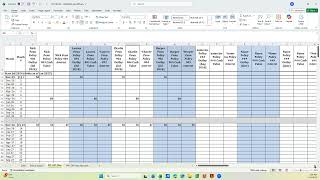
Paul Bohlen walks through the PFF GPS template's four tabs: setting your plan start date, entering per-policy data like premium and cash value, using the debt-repayment calculator to time segregated-account payments, and running a reconciliation check to verify totals.
Chapters
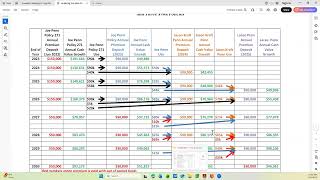
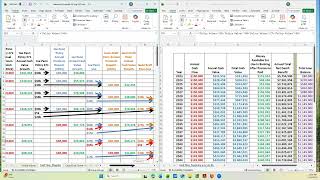
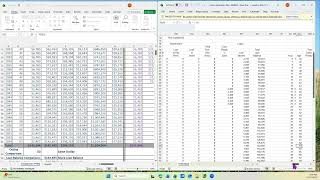
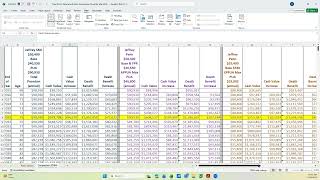
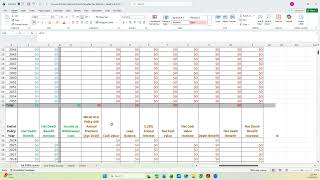
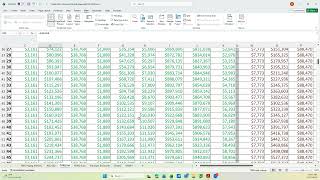
You this video is to explain just the basics of the pff, or Private Family Financing GPS template. And this is what we you would start with. Every time you're going to build a GPS for a client, you don't have to create your own. You go to the template file and start from there. If you look at the bottom, there's four tabs. A date tab, a policy values T, a GPS tab that's highlighted in yellow, and a GPS tab that says monthly. So those are the four different tabs and you're only going to use three of the four normally for GPS when you're building it. If you're building an annual, you would use the yellow one. If you're using a monthly or semiannual or even sometimes a quarterly, you could use the monthly tab. So let's talk about what the tabs show. This is the date tab and what is on there is up at the top is the date, a column heading, and then it has a date already in there. All you do is once you've decided what date you're going to start the gps, you just update that information. I'm going to make this 1125. And when I do that, it doesn't change anything but the cell that you're in. And then you just copy that down. And now you've updated this tab to be able to reflect what you want for dates in the two policy plan tabs. Notice it's got the dates there and it's got the date in the monthly tab. There's another feature that's in here that I don't normally use on this tab. I use it on the policy correction on the plan tab. And I'll show you, it's over here. It just seems more convenient. But in case you don't have that or you want to do it a different place in the date tab, there's a place where you can put the month you're going to start the debt recovery. And then you would put the number of months from the loan calculator that's, you know, that you fill in like, okay, it's going to be 18 months or 10 months or however number of months it takes to pay off the loan. And when you put that in here, let's see if this was a 12, it's going to tell you what month do you stop putting loan repayments back into your segregated account. So, and it explains it here. The next tab is a policy value tab. And this is where you put the information in on each individual policy that the client has so it, it's pretty self explanatory. You put the year of the first line of the illustration, you fill out the premium and the illustration net cash value and it will calculate the loan and the interest, assuming that you put in what the interest rate is up here. You also have a place to put in the loan balance and the cash value and it sums it up. And so you have one section per policy for each client. So if they have 10 policies, you're going to have 10 of these filled out and you may have to add more if there's not enough there. And you only use what you need. And we normally only fill out for the five year period, we don't fill out the rest. But there's places in case you ever wanted to. So that's where the policy values go in. And then they are linked to the policy plan. I'll slide over and you may have to edit this. Especially if this policy starts in July and you're starting the GPS in November, you're going to put the values down here in July for the annual. It may be their current value would go on the November line, but the next one would be in this case would be July 26, if we started the sheet in November of 24. So again, there's three columns for every policy that the client has and they're separated by color just to make it easier to visually see how many policies. That's one policy, two policies, three policies, four policies, five, six, seven. If you need more than that, then you just insert three columns at the end in order to have enough to cover every policy. And the information you're trying to get in there is the premium and when it's paid, what the cash value is now and projected and what the interest is on the projected. Next time that the policy is paid, you update the headings based on, you know, what, what you know the client has for policies. And we talk about all this in the video or the instructions of how to build the left hand side of a GPS for a client. The only difference between the monthly and the annual is you see this gray line that separates it every year. If you did it monthly, we separated every six months. And the reason we do that is yes, there's cash value every month, but we normally don't take loans out every month, so we break them down to every six months. So that would be the amount of cash that's available six months into the plan and then the next six months. And so that this works for both a quarterly correction, a monthly or a semiannual policy where you pay premium in month one and you pay premium in month seven. So there's cash value in month month six that you're going to use and not have to wait all the way to the end of the 12 months I showed you. I was going to talk about this. This is the same thing that was in the front where you put your starting month for the the debt that you took over. And then here off of your calculator you put how many months that debt is going to be paid back to the segregated. And it will calculate what month that payment stops to the segregated. And on the left, correction, the right hand side, here's where the debts all go in. Here's the part already set up for one. If that debt was taken over, where you show the red zeros. And then the calculation how much goes to the segregated and how much goes to the insurance company and what the difference is. And those are all shown in the bottom. They're blank right now, but you fill those in. We also have a check area this to make sure you didn't miss any policy values. This yellow adds up all the cash values that we get in this column minus any duplicates. And this number calculates all the cash values of each individual policy. To check it. This number in this cell should equal this number in this cell. And that's just a double check to make sure you didn't miss any cash values on any policy. Right. That concludes an overview of the GPS template.